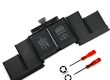
Replacing your Macbook laptop battery can breathe new life into your device, improving its portability and usability. This guide provides a step-by-step approach to safely and effectively replace your laptop battery, ensuring your Macbook continues to perform optimally.
Table of Contents
ToggleUnderstanding Macbook Laptop Batteries
Modern Macbooks primarily use lithium-ion (Li-ion) batteries. These batteries offer a good balance of weight, power density, and lifespan. Unlike older nickel-cadmium (NiCd) batteries, Li-ion batteries don’t suffer from the “memory effect,” so you don’t need to fully discharge them before recharging.
Why Replace Your Laptop Battery?
Over time, all laptop batteries degrade. You might need a replacement if you experience:
- Reduced Battery Life: Your Macbook runs for significantly less time on a full charge than it used to.
- Swelling: A swollen battery is a safety hazard and requires immediate attention.
- Unexplained Shutdowns: Your Macbook shuts down unexpectedly, even with some battery charge remaining.
- Battery Health Indicators: The system may display a warning message indicating the battery needs service.
What You’ll Need?
Before you begin, gather the following items:
- Replacement Laptop Battery: Ensure you purchase a battery specifically designed for your Macbook model. Check the model number on the bottom of your Macbook.
- Pentalobe Screwdriver: This specialized screwdriver is needed to remove the screws on the bottom case of most Macbooks.
- Spudger or Plastic Opening Tool: Use this to pry open the case without scratching or damaging your Macbook.
- Anti-Static Wrist Strap (Optional): To prevent static discharge from damaging internal components.
- Soft, Clean Surface: Work on a clean surface to avoid scratching your Macbook.
Step-by-Step Replacement Guide
Important Safety Precautions:
- Disconnect Power: Make sure your Macbook is turned off and unplugged from the power source before starting.
- Work in a Well-Lit Area: Good lighting is essential for seeing small screws and components.
- Be Patient and Careful: Rushing can lead to damage. Take your time and work carefully.
Step 1: Power Down and Prepare
- Shut down your Macbook completely.
- Unplug the power adapter.
- Place your Macbook on a soft, clean surface, screen-side up.
Step 2: Remove the Bottom Case
- Using the Pentalobe screwdriver, unscrew the screws on the bottom case. The number and placement of screws vary depending on your Macbook model. Keep track of where each screw came from; you’ll need to replace them in the same position.
- Carefully use the spudger or opening tool to pry open the bottom case. Start at a corner and work your way around the edges, releasing the clips that hold the case in place.
Step 3: Disconnect the Battery
- Locate the battery connector on the logic board.
- Carefully disconnect the battery connector. This usually involves gently prying it up or sliding it out. Refer to a specific guide for your Macbook model for precise instructions.
Step 4: Remove the Old Battery
- Unscrew any screws that secure the battery to the chassis.
- Gently lift the old battery out of the Macbook. Be careful not to bend or puncture the battery.
Step 5: Install the New Battery
- Place the new battery in the Macbook.
- Secure the new battery with the screws you removed from the old one.
Step 6: Reconnect the Battery
- Reconnect the battery connector to the logic board.
Step 7: Reassemble the Macbook
- Carefully align the bottom case with the Macbook’s body.
- Press down firmly around the edges to snap the clips back into place.
- Screw the bottom case back in place using the Pentalobe screwdriver.
After Battery Replacement
Charging and Calibration
- Plug in your Macbook and charge it to 100%.
- Use your Macbook until the battery is nearly depleted.
- Repeat this charging and discharging cycle a few times to calibrate the new battery.
Battery Care Tips
- Avoid Extreme Temperatures: Don’t leave your Macbook in direct sunlight or extreme cold.
- Partial Discharges: Li-ion batteries perform best with shallow discharges. Avoid letting the battery drain completely.
- Storage: If storing your Macbook for an extended period, charge the battery to around 50% and store it in a cool, dry place.
Choosing a Replacement Laptop Battery
When selecting a replacement laptop battery, consider these factors:
- Compatibility: Ensure the battery is specifically designed for your Macbook model.
- Quality: Choose a reputable brand with good reviews.
- Safety Features: Look for batteries with overcharge protection and other safety mechanisms.
- Warranty: A warranty provides protection against defects.
Where to Buy Laptop Batteries
You can purchase replacement laptop batteries from:
- Apple: The official source for Macbook batteries.
- Online Retailers: Amazon, eBay, and other online retailers offer a wide selection of batteries.
- Specialty Battery Stores: Stores specializing in batteries often carry Macbook batteries.
By following these steps, you can successfully replace your Macbook laptop battery and extend the life of your device. Remember to prioritize safety and take your time throughout the process.
- Top 10 Laptop Battery Suppliers In China - August 27, 2025
- Top 10 Laptop Battery Suppliers In The UK - August 27, 2025
- How To Replace iPhone Battery: A Comprehensive Guide - August 21, 2025